 Intonic Live
 tunes a voice while it is sung, so the singer hears themselves in tune in their headphones or on stage. It runs as an AU and VST3 plug-in on a vocal track, and as an app of its own with no DAW at all.
There is no latency to set and no lookahead: the DAW is told 0, and the voice comes back about 3 ms behind on average.
Two minutes to tuned
- Put it on the vocal track as an insert, and turn on the track's input monitoring so the singer hears it. Or open the app and pick the microphone (see The app).
- Pick the key from the menu under the ring, or press Find key and sing a verse. Chromatic works for any song.
- Pick a character: Natural for most leads, Tight for pop, Robot for the effect.
- Pick the voice range: High, Mid or Low in the header. Mid fits most voices.
- Sing. The light in the header says Hearing a voice, and the note you sing shows in the ring.
Install and activate
Intonic Live needs a Mac with Apple silicon and macOS 12 or later, or Windows 10 or 11 (64-bit). It installs as a VST3, an AU (on the Mac) and an app. On Windows, Ctrl does what ⌘ does here, and Alt what ⌥ does. Restart your DAW, or rescan its plug-ins, if it was open.
The first time, the licence card asks for your email and sends a six-digit code. Enter it, then start the 30-day trial or activate your licence. The header shows the days left. After that it works offline. A licence covers three computers at a time; free one under Settings › Licence or on your account page.
In a DAW, while recording
- Insert Intonic Live on the vocal track, first in the chain.
- Turn on input monitoring for that track (in Logic the I button, in Cubase the Monitor button), and turn off the interface's own direct monitoring so the singer doesn't hear the dry voice too.
- Set the audio buffer to 64 or 128 samples while tracking. A smaller buffer takes the most delay off.
- Record. The track records the voice as sung; the singer hears it tuned.
Because Intonic Live reports no latency, the DAW moves nothing on the track. To print the tuning, bounce the track or record its output on another track.
The app, on stage
The Intonic Live app needs no DAW: microphone, interface, Intonic Live, then the PA or in-ears. Open Audio & MIDI (the button in the window, the menu, or ⌘,) and choose:
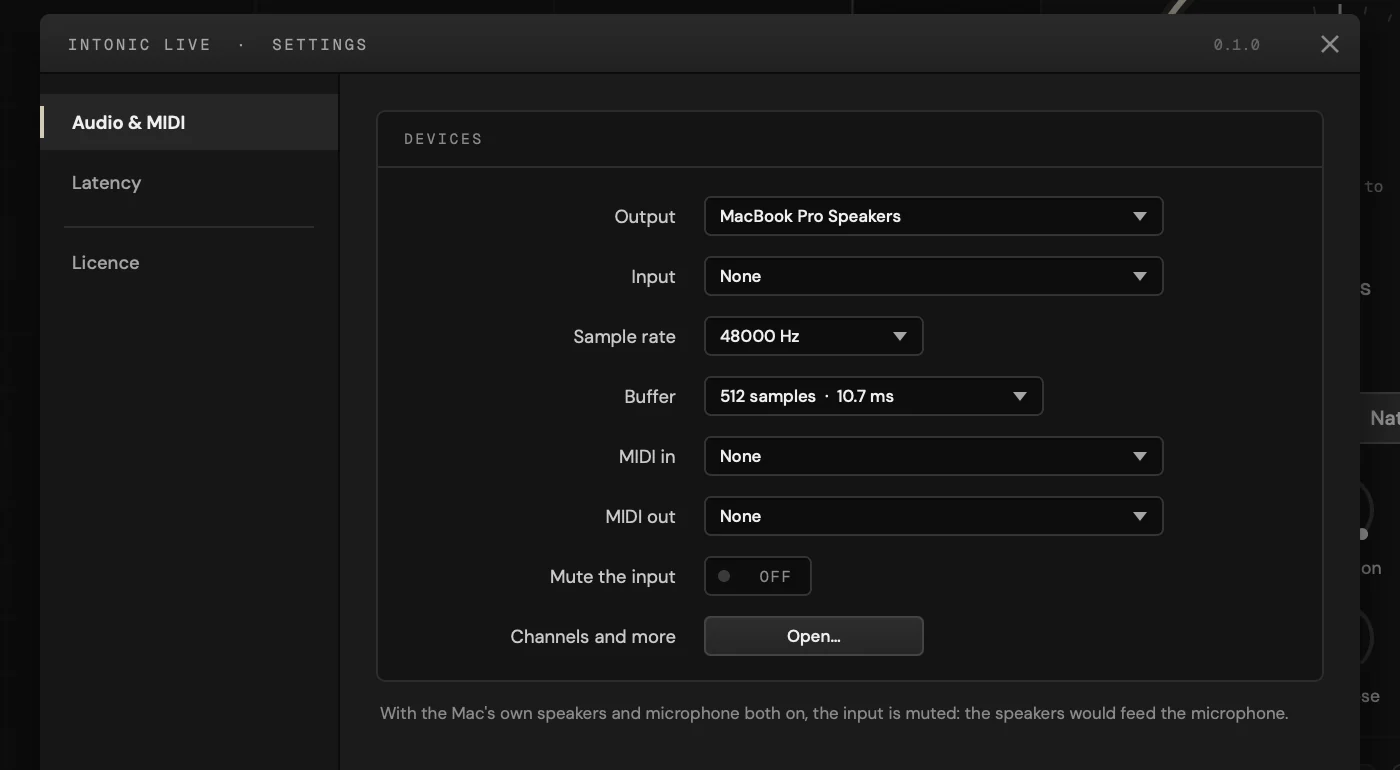
- Output
- Where the tuned voice is played: the interface, the in-ears.
- Input
- The microphone, or the interface the voice comes in from.
- Sample rate, Buffer
- The device's rate and its buffer. Smaller is sooner: less delay, more work for the computer. 128 samples is a safe start.
- MIDI in
- A keyboard: the notes held are the notes the voice is pulled to (see Notes from a MIDI keyboard).
- MIDI out
- Where the notes you sing go as MIDI. On the Mac, other apps can also take them from the app's own port, “Intonic Live”.
- Mute the input
- Nothing comes in. For when the speakers can feed the microphone.
- Channels and more
- The device's own window: its channels and a test tone.
The window
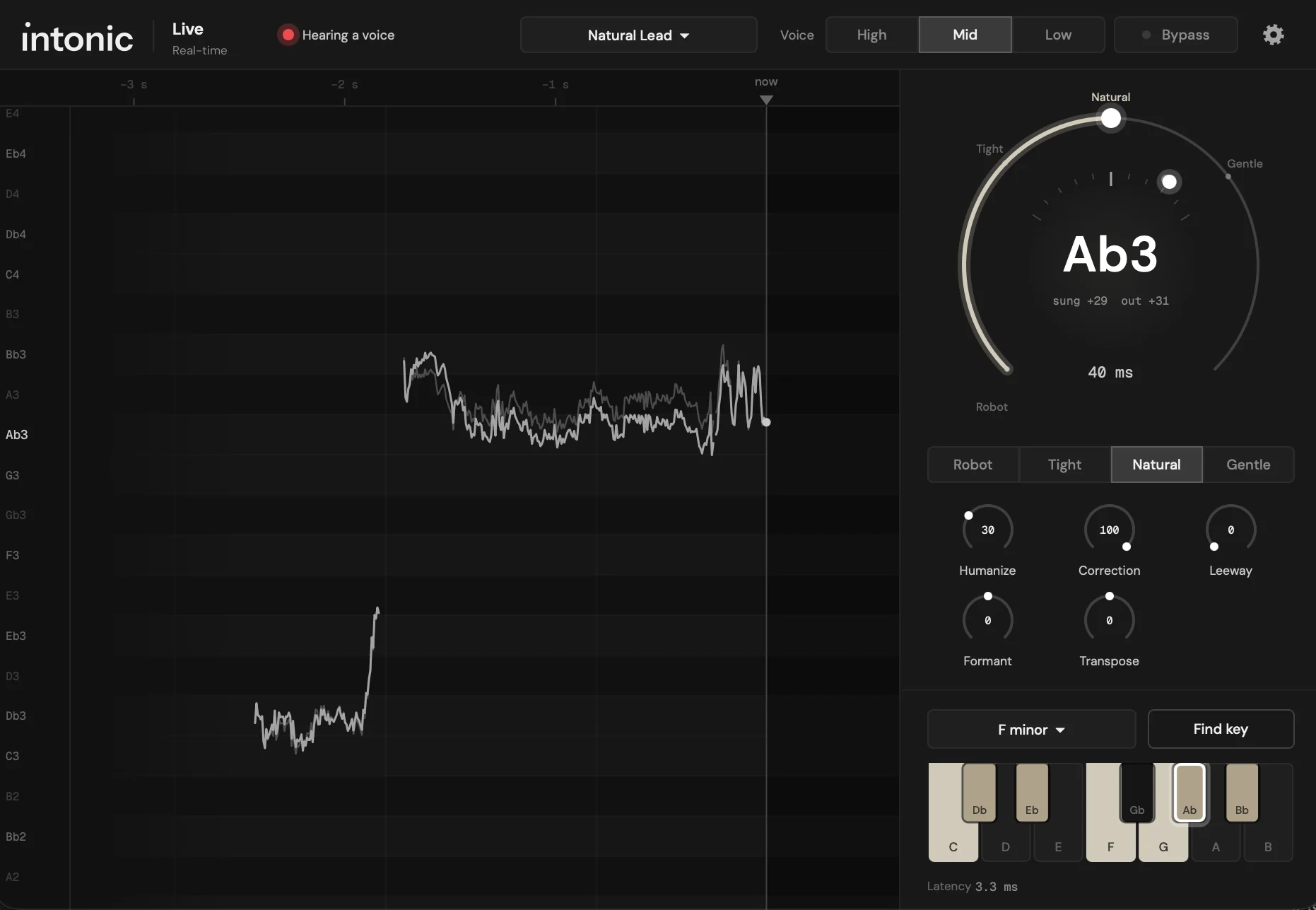
- 1The light. Hearing a voice, or waiting for one. If it never lights, the input is wrong or muted.
- 2Presets. How it tunes, saved and recalled. A preset never changes the key or scale.
- 3Voice. The singer's range: High (110 to 1300 Hz), Mid (75 to 900 Hz), Low (55 to 600 Hz).
- 4Bypass. The voice untouched, to hear before and after.
- 5Settings. Audio & MIDI (in the app), Latency, Licence. ⌘,
- 6The roll. The last few seconds: the voice as sung in grey, as it comes out in white, now at the right.
- 7The ring. The retune speed, from Robot through Tight and Natural to Gentle. Drag the handle round.
- 8The note. The note the voice is pulled to, with how far off it was sung and how far off it comes out, in cents.
- 9Speed. The ring's setting in milliseconds.
- 10Characters. Four starting points for the ring and Humanize, one click each.
- 11The knobs. Humanize, Correction, Leeway, Formant, Transpose.
- 12Scale. Chromatic, a major or minor key, or your own notes.
- 13Find key. Sing and it sets the key once it is clear.
- 14The keys. The notes the voice is pulled to, lit. Click one to take it out or put it back.
- 15Latency. How far behind the voice the tuned voice is, right now.
Speed and character
The ring sets the retune speed: how quickly the voice is pulled onto the note once it drifts off, from 0 to 400 ms. It changes the sound more than anything else here. Drag the handle round; double-click it for 40 ms.
| Character | Speed | Humanize | Sounds like |
|---|---|---|---|
| Robot | 0 ms | 0% | Every moment on the note: the effect. |
| Tight | 10 ms | 0% | In tune at once, a touch of the voice left. Modern pop. |
| Natural | 40 ms | 30% | In tune, and still the singer. The default. |
| Gentle | 120 ms | 50% | A light hand: slides and vibrato kept. |
The milliseconds mean the same as on the best-known tuner: the same number leaves a song as far off the note. If you already have a speed you like there, use it here.
The knobs
Drag a knob up or down; double-click it for its default.
- Humanize
- How much held notes keep of their own movement. Quick notes are still tuned; long ones arrive more slowly and keep their life. Default 30%.
- Correction
- How far the voice is pulled to the note. 100% is all the way; lower leaves some of the sung tuning in. Default 100%.
- Leeway
- Only a voice already near its note is pulled; one further off is left as sung. Good for rap, talking and deliberate slides. Default 0%.
- Formant
- The voice's colour moved up or down, its pitch left where it is, up to 12 semitones either way.
- Transpose
- Everything moved by semitones, up to an octave either way, with the voice's colour kept.
Key and scale
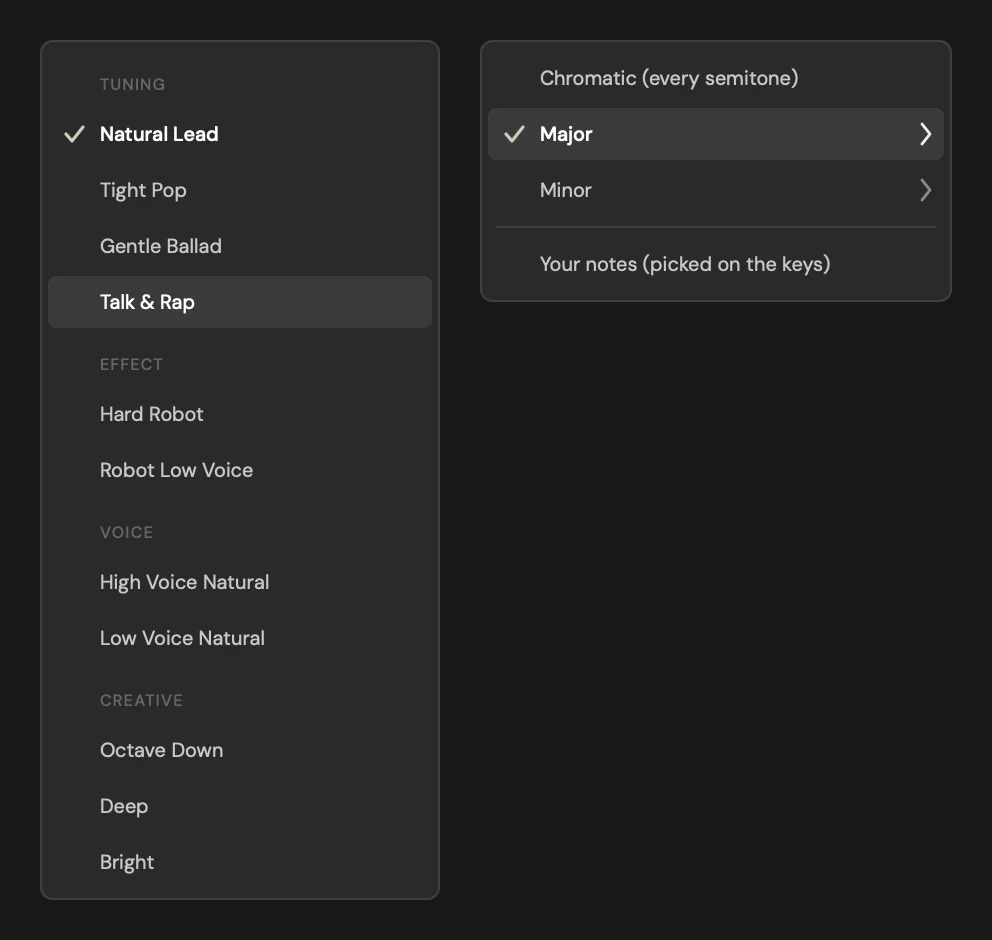
The scale menu under the ring picks what the voice is pulled to: Chromatic (every semitone), any major or minor key, or your notes. A key keeps a note sung between two semitones from landing on the wrong one.
Find key listens while you sing. It shows Listening…, then its guess with a question mark, and sets the key once it is clear, usually after 15 to 40 seconds of singing.
The keyboard shows the notes in use, lit. Click a key to take that note out or put it back: for a song that avoids a note of its key, or a blues third that should stay where it is sung.
Notes from a MIDI keyboard
Hold a chord on a MIDI keyboard and the voice is pulled to those notes only, in any octave. Let go and it goes back to the scale. On stage this follows the song's chords as you play them; the window's scale then reads MIDI notes.
- In the app: choose the keyboard under Settings › Audio & MIDI › MIDI in.
- In a DAW: send a MIDI track to Intonic Live. In Logic it is a MIDI-controlled effect: choose the keyboard's track in the plug-in window's Side Chain menu. In Cubase, REAPER and others, route a MIDI track's output to Intonic Live.
Your voice as MIDI
Intonic Live also sends the notes you sing as MIDI, on channel 1, so you can play a synth with your voice. A note starts once the voice holds still on it, so a slide doesn't fire every note it passes; its velocity comes from how loud it was sung, and a silence ends it. Transpose is included. It is for playing, not for an exact transcription; for that, use Intonic Vocal's Drag MIDI.
- In the app: choose a MIDI out device, or, on the Mac, take it from the port called “Intonic Live” in any other app.
- In a DAW: the VST3 sends MIDI wherever the DAW lets a plug-in's MIDI go, usually by setting a MIDI track's input to Intonic Live. As an AU it depends on the host taking an effect's MIDI.
Presets
The menu in the header holds the factory presets and your own. A preset sets how it tunes: speed, Humanize, Correction, Leeway, voice range, Formant and Transpose. It never changes the key or scale, which belong to the song.
| Preset | Group | Speed | Humanize | Leeway | Voice | Also |
|---|---|---|---|---|---|---|
| Natural Lead | Tuning | 40 ms | 30% | 0% | Mid | |
| Tight Pop | Tuning | 10 ms | 0% | 0% | Mid | |
| Gentle Ballad | Tuning | 120 ms | 50% | 30% | Mid | |
| Talk & Rap | Tuning | 20 ms | 20% | 70% | Mid | |
| Hard Robot | Effect | 0 ms | 0% | 0% | Mid | |
| Robot Low Voice | Effect | 0 ms | 0% | 0% | Low | |
| High Voice Natural | Voice | 40 ms | 30% | 0% | High | |
| Low Voice Natural | Voice | 40 ms | 30% | 0% | Low | |
| Octave Down | Creative | 20 ms | 0% | 0% | Mid | Transpose −12 |
| Deep | Creative | 40 ms | 30% | 0% | Mid | Formant −3 |
| Bright | Creative | 40 ms | 30% | 0% | Mid | Formant +3 |
To keep your own, choose Save as a new preset… and type its name where the preset's name shows (Return keeps it, Esc doesn't). Once you change it, Save over updates it; Delete removes it, and Show the presets folder opens them in the Finder or Explorer to copy to another computer. In a DAW the presets also appear as the plug-in's programs.
Latency
Intonic Live adds no fixed delay and reports 0 to the DAW. What it adds moves with the voice: 0.3 ms at a note's start, about 3 ms on average while singing, and up to 14 ms on the lowest notes, because a low note takes longer to read. The window shows the delay now at its foot, and in Settings › Latency.
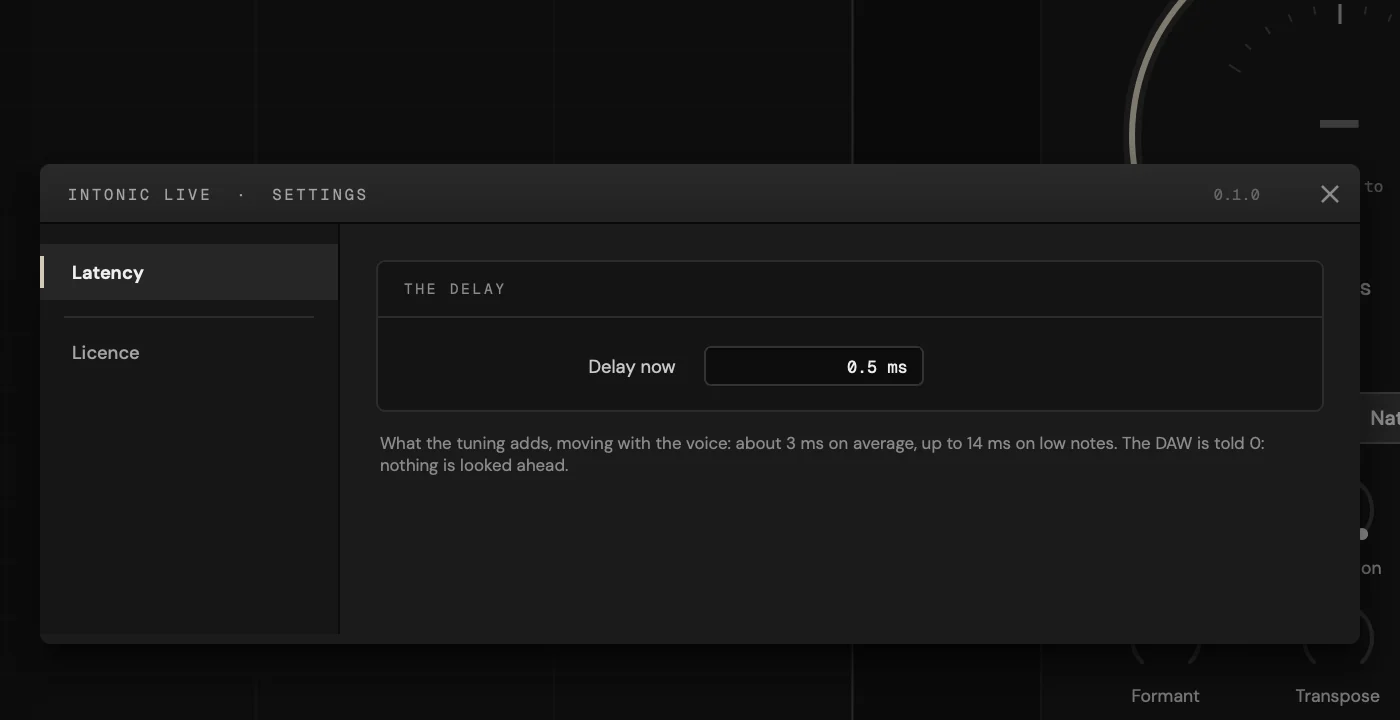
The interface adds its own buffer, once on the way in and once on the way out. At 48 kHz, 128 samples is about 2.7 ms each way, so a singer hears roughly 8 to 9 ms in all; at 64 samples, under 6. That buffer is the setting that matters most.
When something is off
- The light never says Hearing a voice
- Check the input: in a DAW the track's input and monitoring, in the app Settings › Audio & MIDI › Input. If the app shows the input muted, it is the speakers-and-microphone guard: use headphones.
- The singer hears two voices, or flanging
- The interface's direct monitoring is on as well as the DAW's. Turn direct monitoring off.
- It warbles or jumps between notes
- Set Voice to the singer's range (Low for a bass voice, High for a soprano). A key instead of Chromatic helps too, and a little Leeway for slides.
- It sounds robotic on a ballad
- Turn the ring towards Gentle, or raise Humanize.
- Notes land on a wrong neighbour
- The key may be wrong: press Find key and sing a verse, or set it by hand.
- The delay feels long
- Lower the buffer: 64 or 128 samples. The buffer adds more than Intonic Live does.
- Feedback or howling
- Use headphones or in-ears; keep the microphone away from the speakers. The app mutes its input when the computer's own speakers and microphone are both on.
- It says Trial ended · bypassed
- The trial is over and the voice passes through untouched. Settings › Licence to activate.
Something here not matching what you see, or not answered? Write to [email protected].